 Tiverton RFC · Junior Section · Registration Guides
Est. 1868 · Devon's oldest club
Tiverton RFC · Junior Section · Registration Guides
Est. 1868 · Devon's oldest club
Tiverton RFC · Junior Section · Registration Guides
Est. 1868 · Devon's oldest club
Tiverton RFC · Junior Section · Registration Guides
Est. 1868 · Devon's oldest club
This guide is for new players joining Tiverton RFC who have never registered with the RFU GMS website before.
Registering your Player on the RFU GMS is the second part of joining Tiverton RFC Juniors. You also have to complete the club's registration form on behalf of the player. Please speak with a Parent Rep if you need further guidance.
The purpose of this guide is to walk you through the set up process to ensure no fiddly loose ends are left behind that you will need to come back and fix. The first thing to note, is that the account is set up by, and in the name of, the parent or guardian. The player's details are added later, under your account.
The RFU require all players to be registered with them. They do this via their Game Management System. An online portal for clubs and players.
This whole process is managed online via the RFU's GMS website: https://gms.rfu.com/GMS/Tiverton
The parent or guardian does NOT need to pay a membership fee or register as a player. Only the player does.
Click on the GMS link:
https://gms.rfu.com/GMS/Tiverton
You will see that it is already assigned to Tiverton RFC.
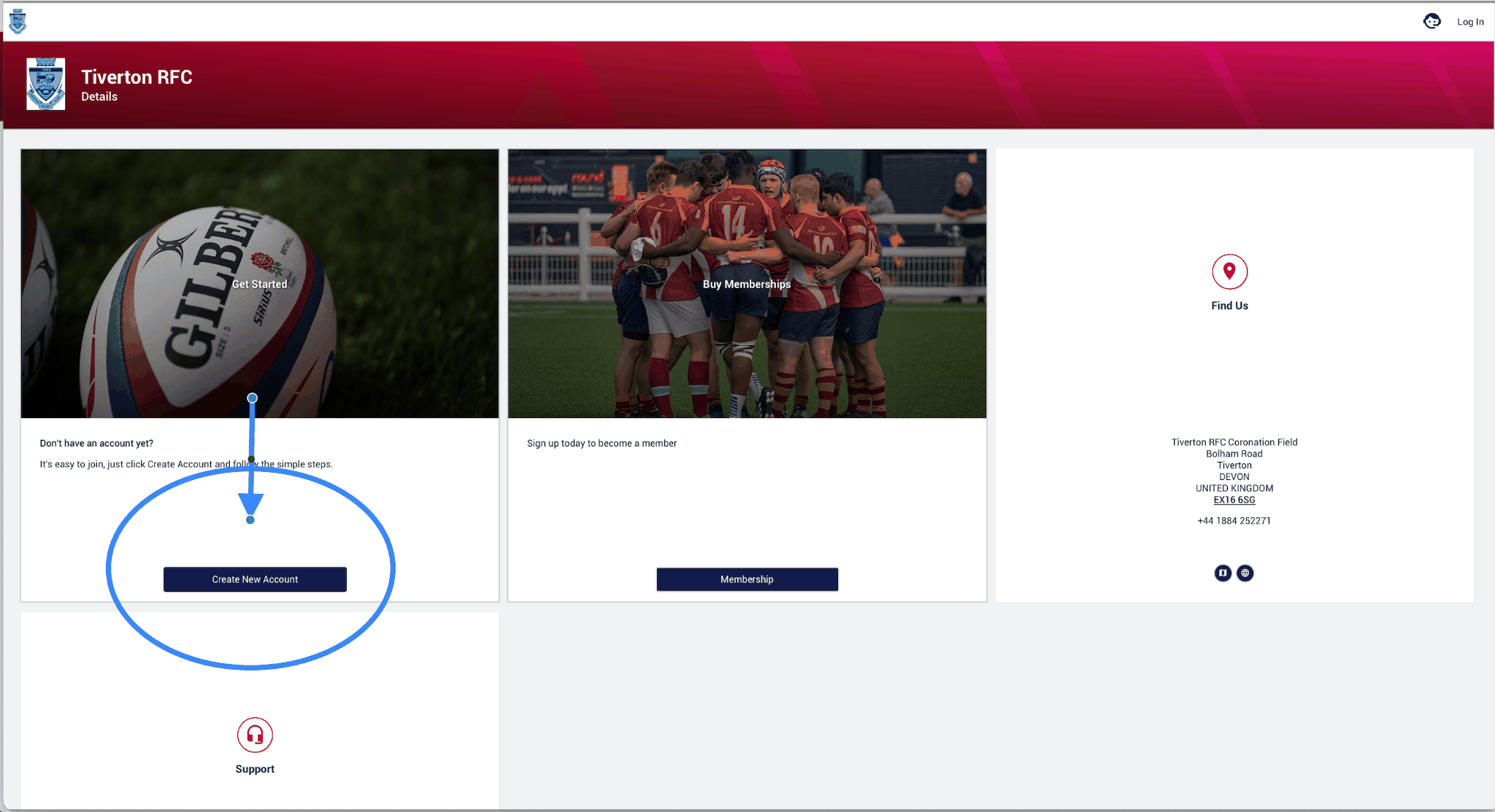
This will take you to the initial account creation form. Please once again remember: this needs to be completed by the parent or guardian, with their details.
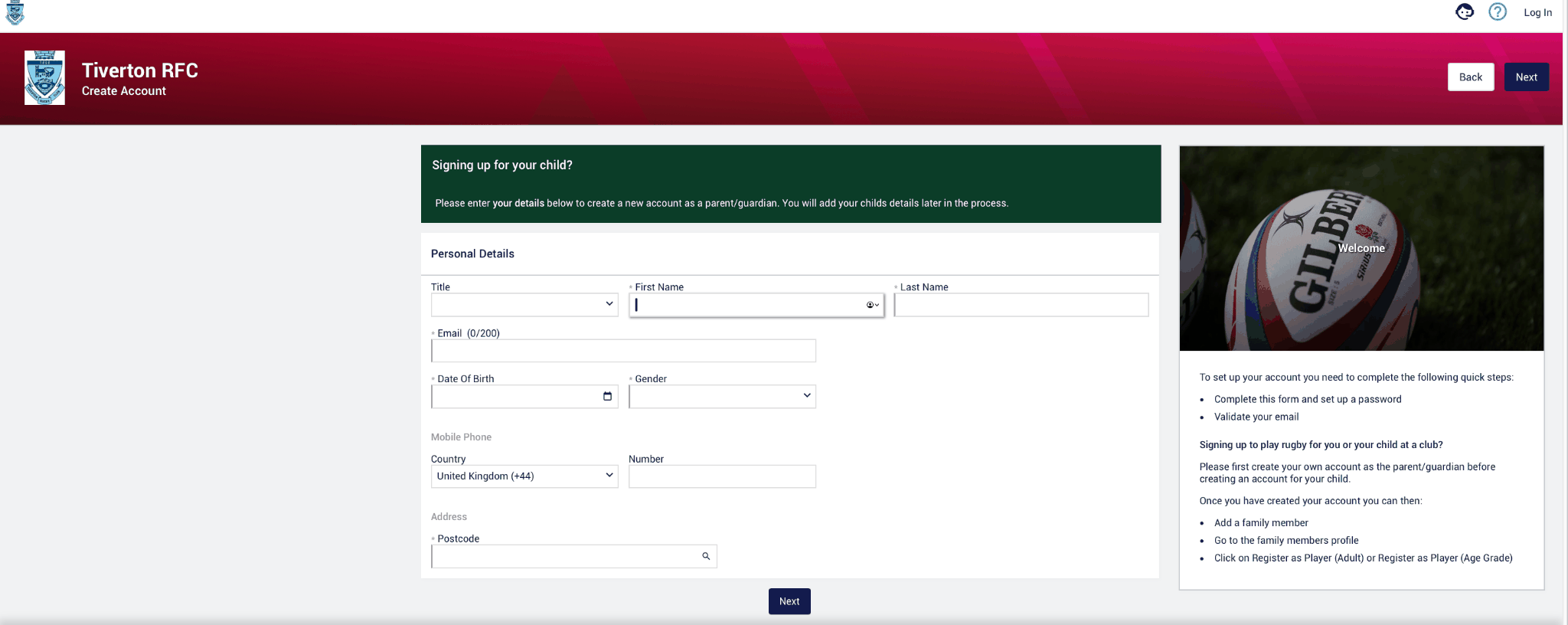
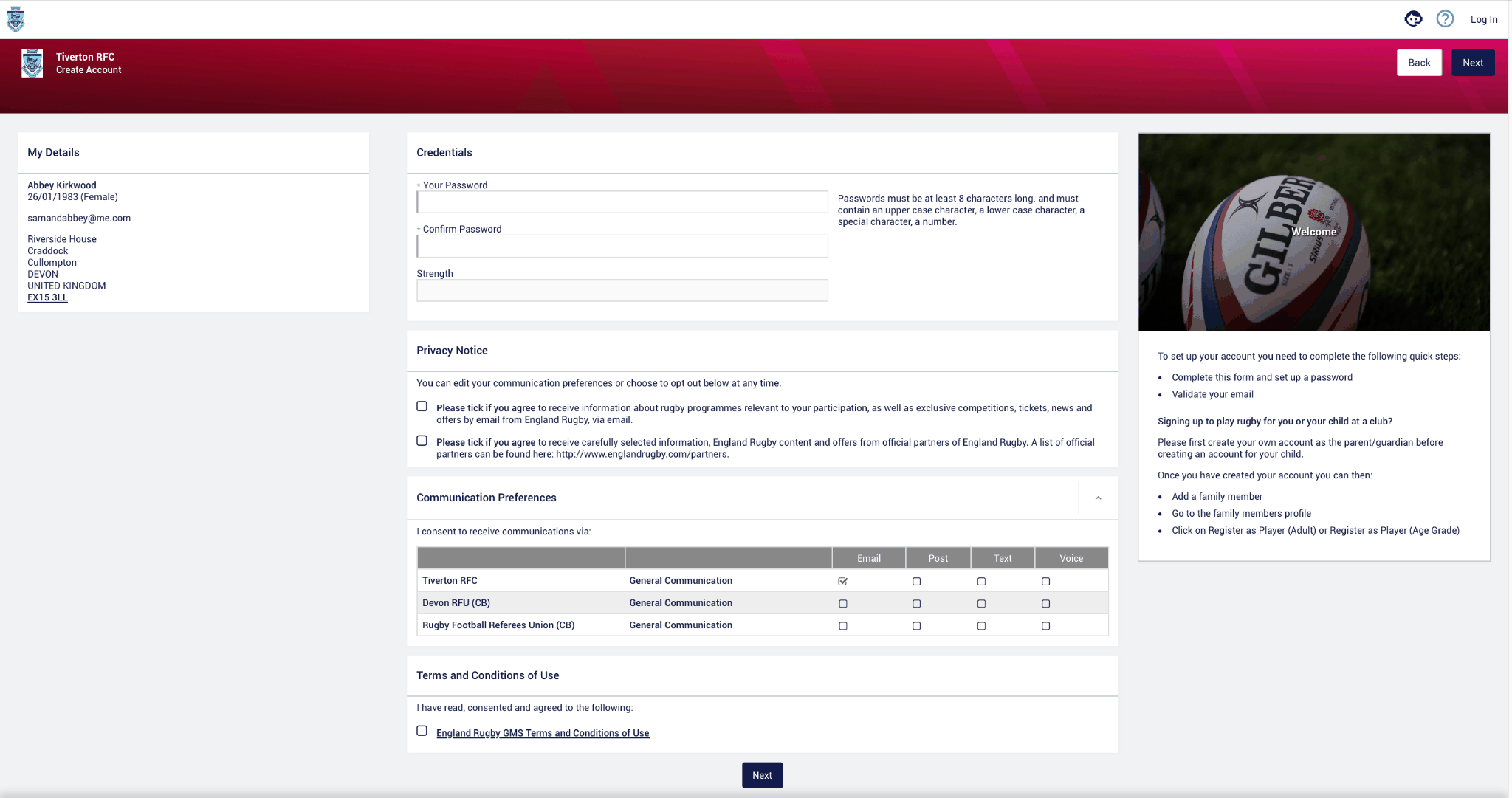
You can ignore the Privacy notice, but you do need to tick the GMS T&C's at the bottom of the page. And don't click that green banner — you do not need to register yourself or pay any fee under your name. Now we need to create the player's profile…
Once your profile is complete you will see the below screen. Do NOT click on the green banners as they will create the player account in your name.
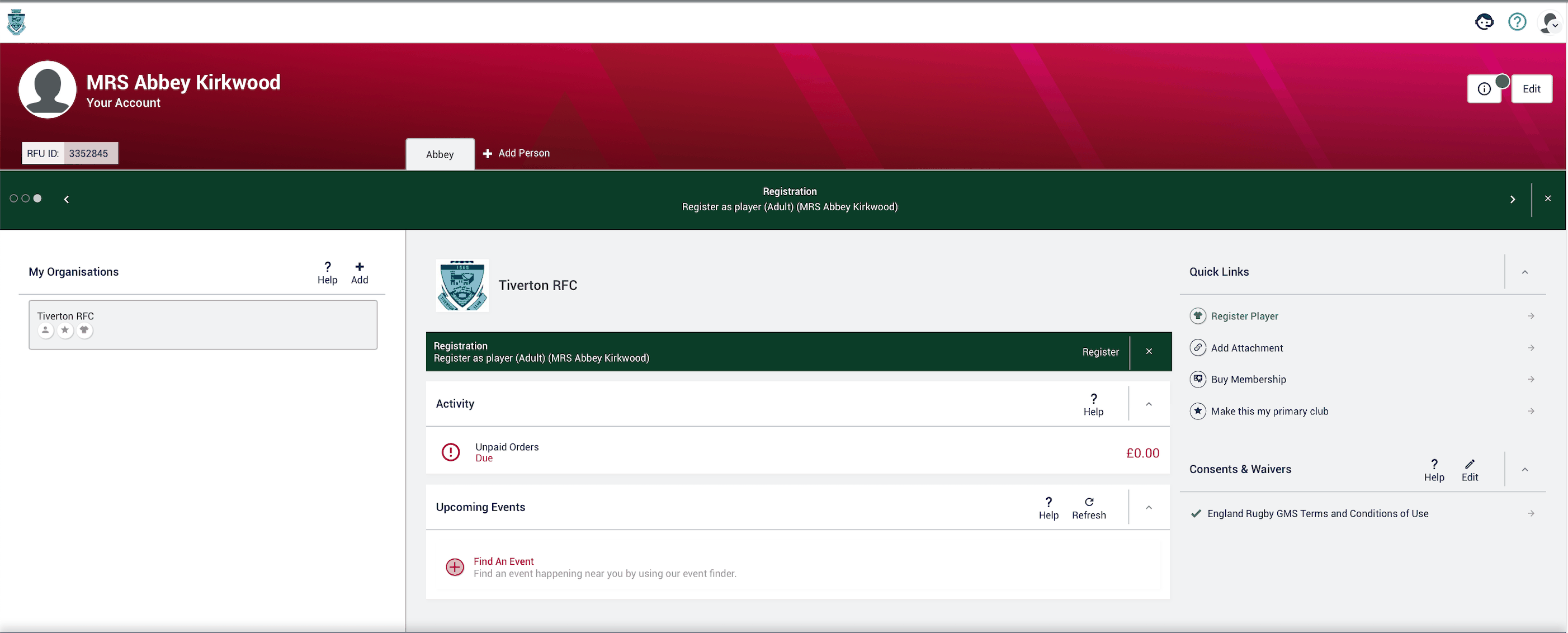
You will see the Add Person tab:
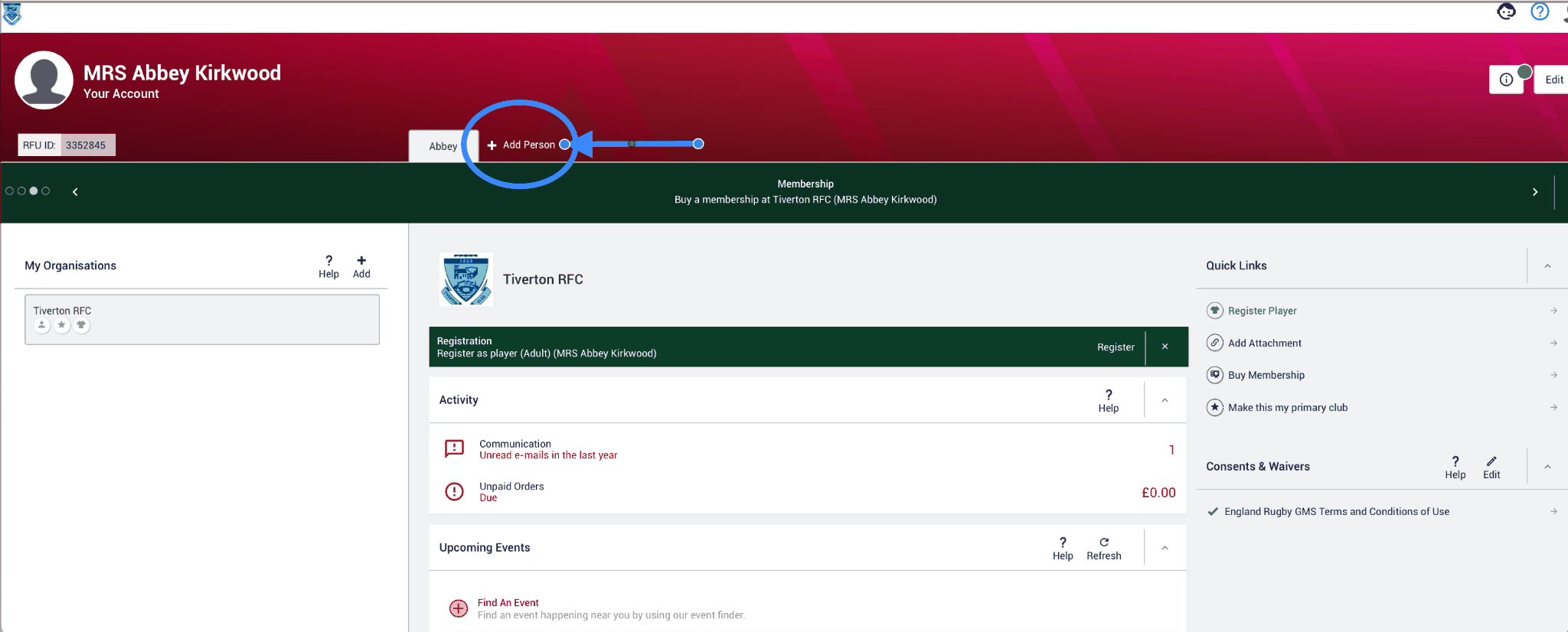
Click on this to start adding the player's details:
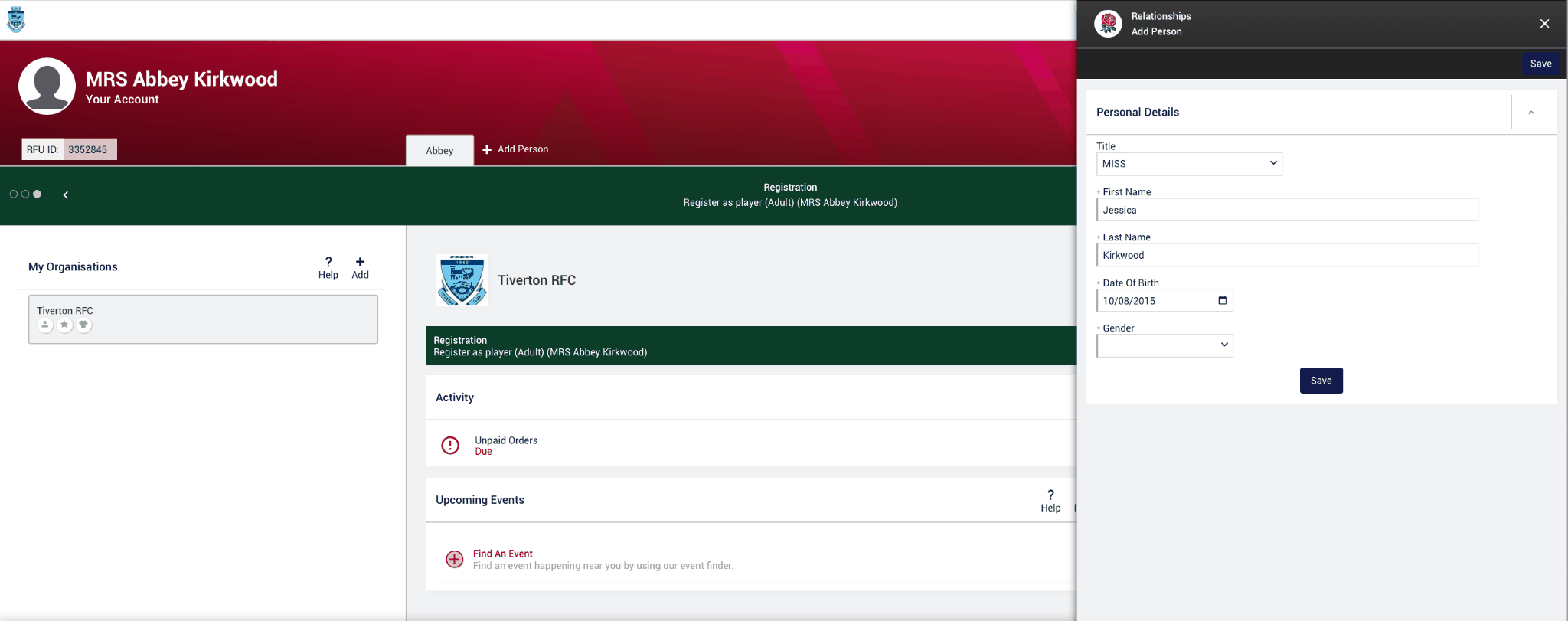
Once that section is complete, we can work within the player's tab — you'll know this as it is the highlighted tab:
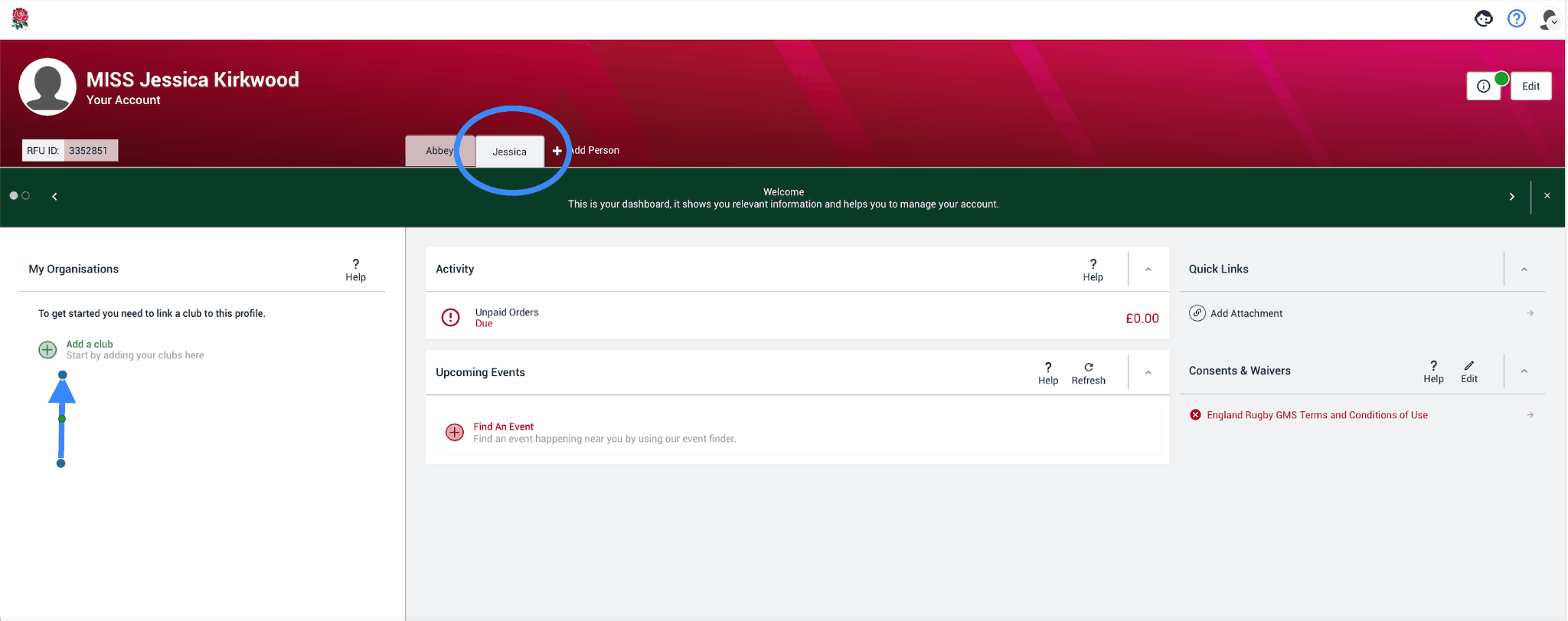
One flaw in this system is that whilst you as the parent or guardian are assigned to the club automatically, the player isn't! Genius! So the first job is to assign the player to Tiverton RFC — see the arrow above. Then, inside the player's account, you need to pay the £15 RFU membership fee, complete the player registration form, and complete all the consents and waivers.
BE CAREFUL HERE. It looks deceptively easy at first glance — however, the green banner rotates automatically from BUY A MEMBERSHIP to REGISTER TO PLAY. The font is so incredibly small it's easy to click the wrong one.
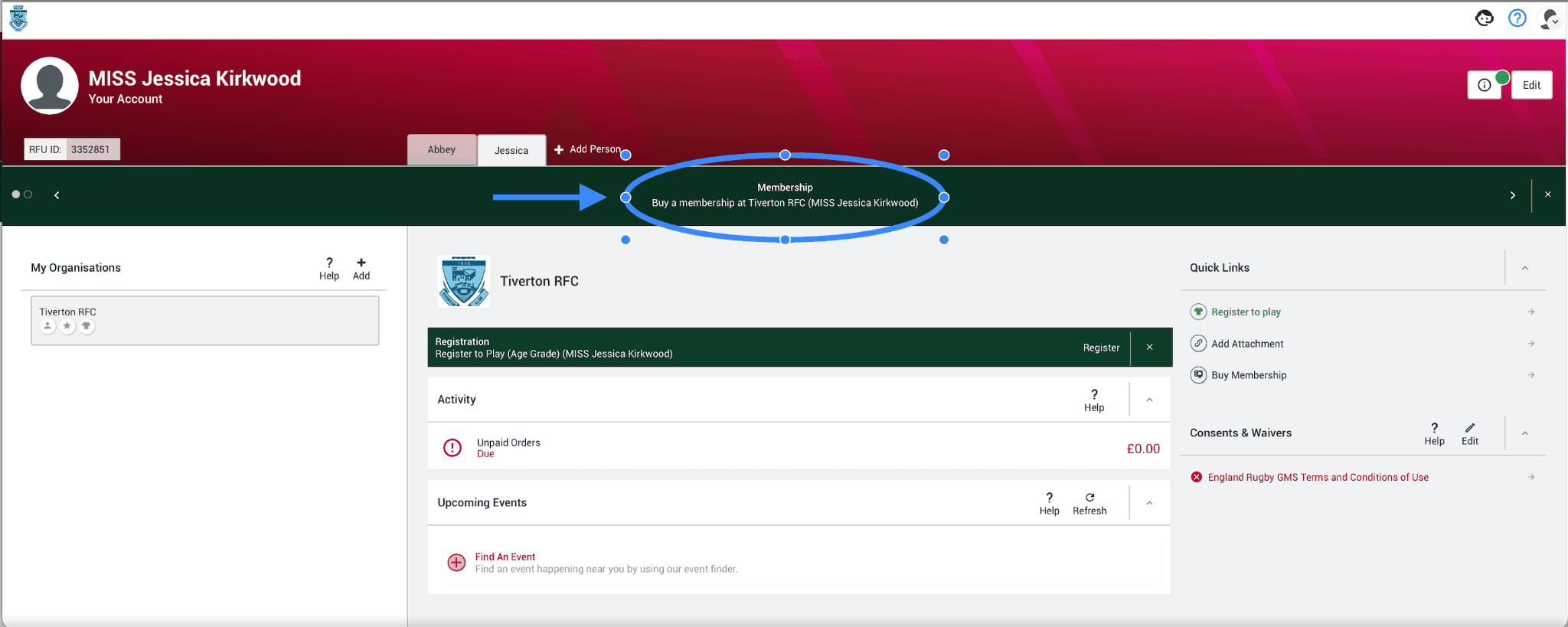
You want to click on this one — Buy A Membership:

Once clicked you will see this screen. (I have zoomed out my screen to make screenshots easy, so you may need to scroll down.)
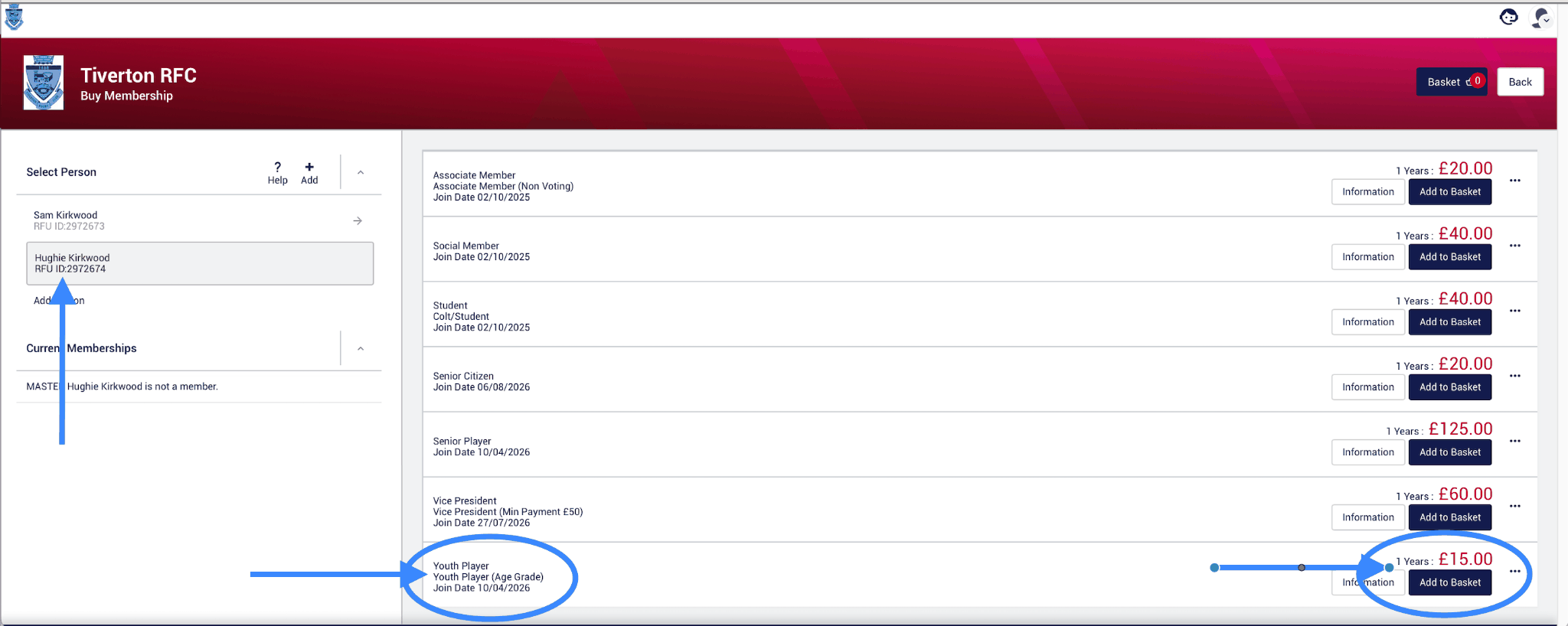
Ensure you are still in the player's tab — easy to check, as their name will be highlighted as per the screenshot. Then click ADD TO BASKET.
Bizarrely, the YOUTH PLAYER option disappears after you have clicked it. But you will see the BASKET button at the top of the page now has a 1 on it — now you need to click the CHECKOUT button:
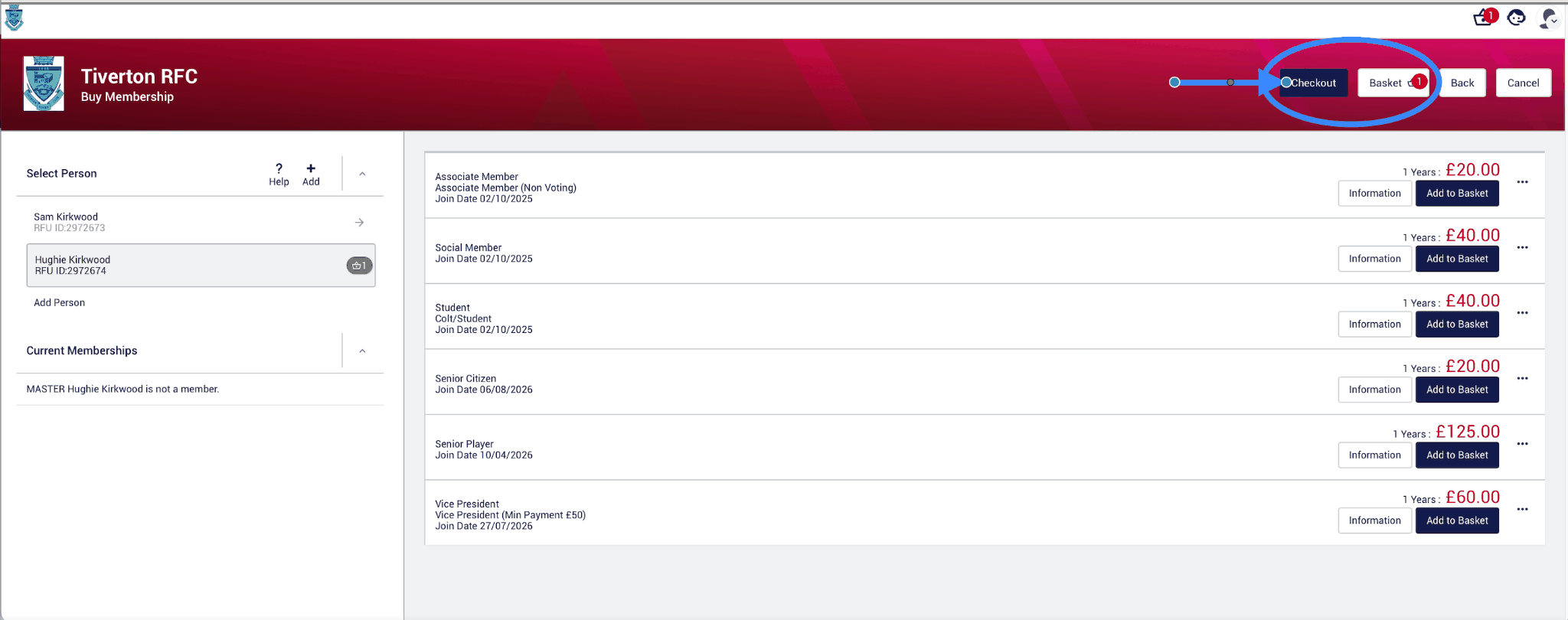
After you have clicked CHECKOUT this screen will appear. Double check the membership is for your child and not you, then hit PAY NOW:
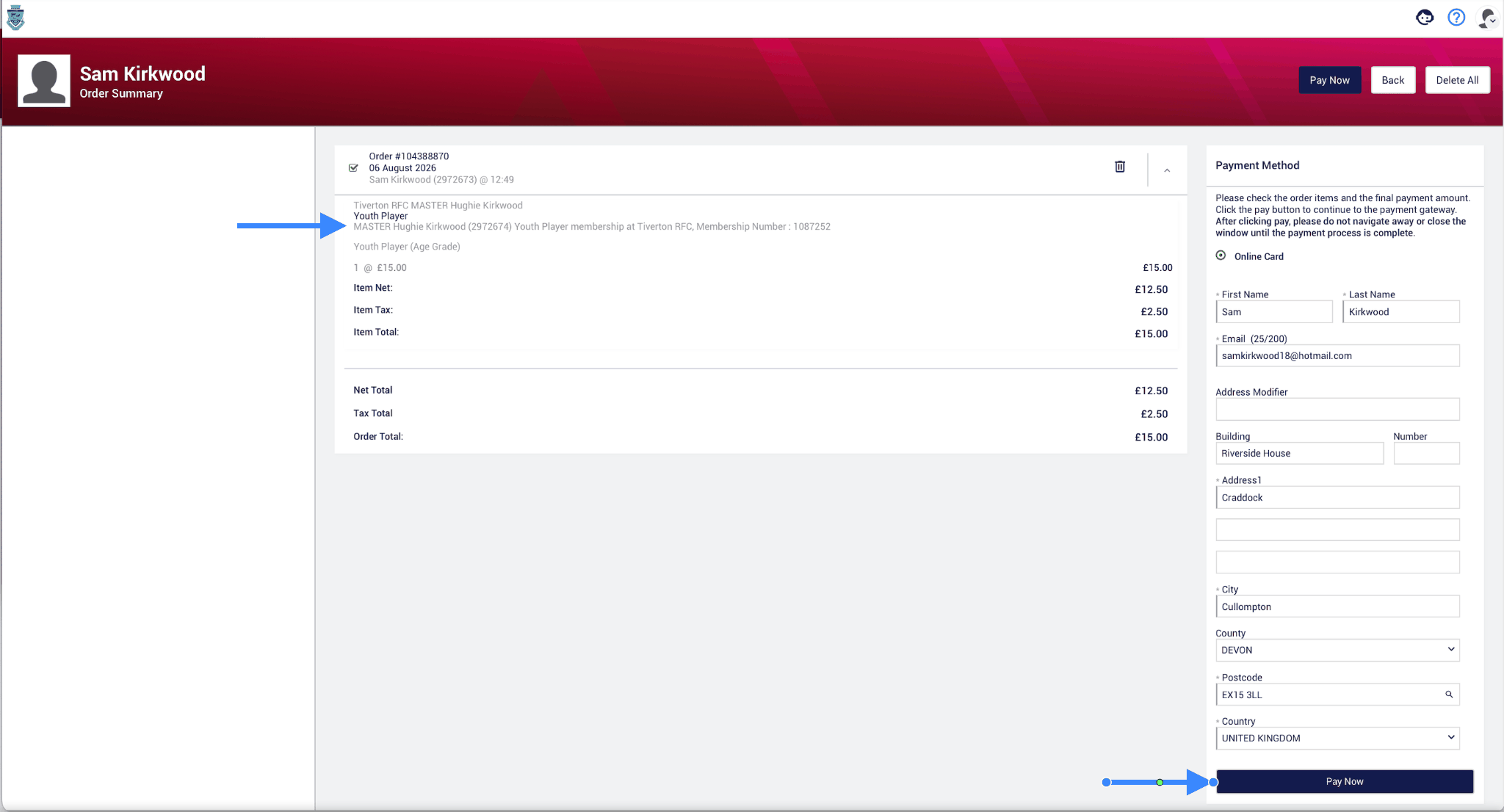
This is the payment success screen confirming the new membership:
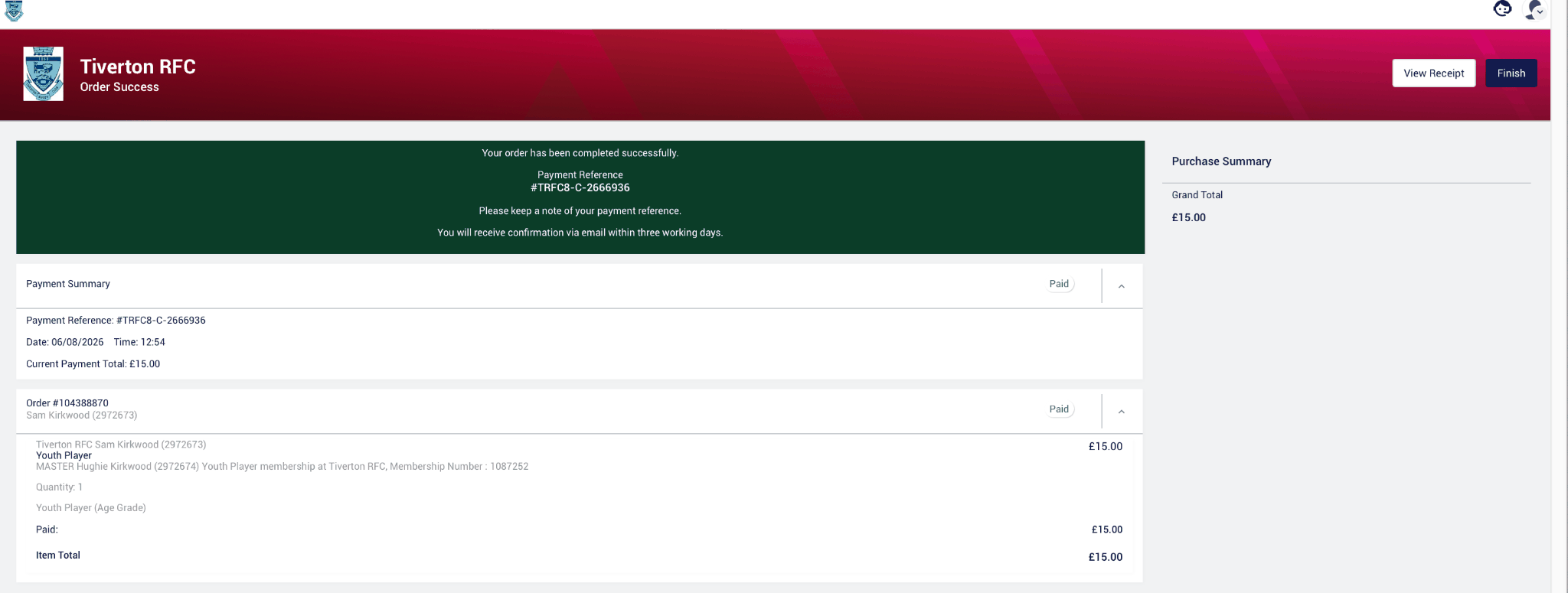
After clicking FINISH from the last step, the system frustratingly puts you on the Parent and Guardian tab. You will need to switch back to your child's tab:
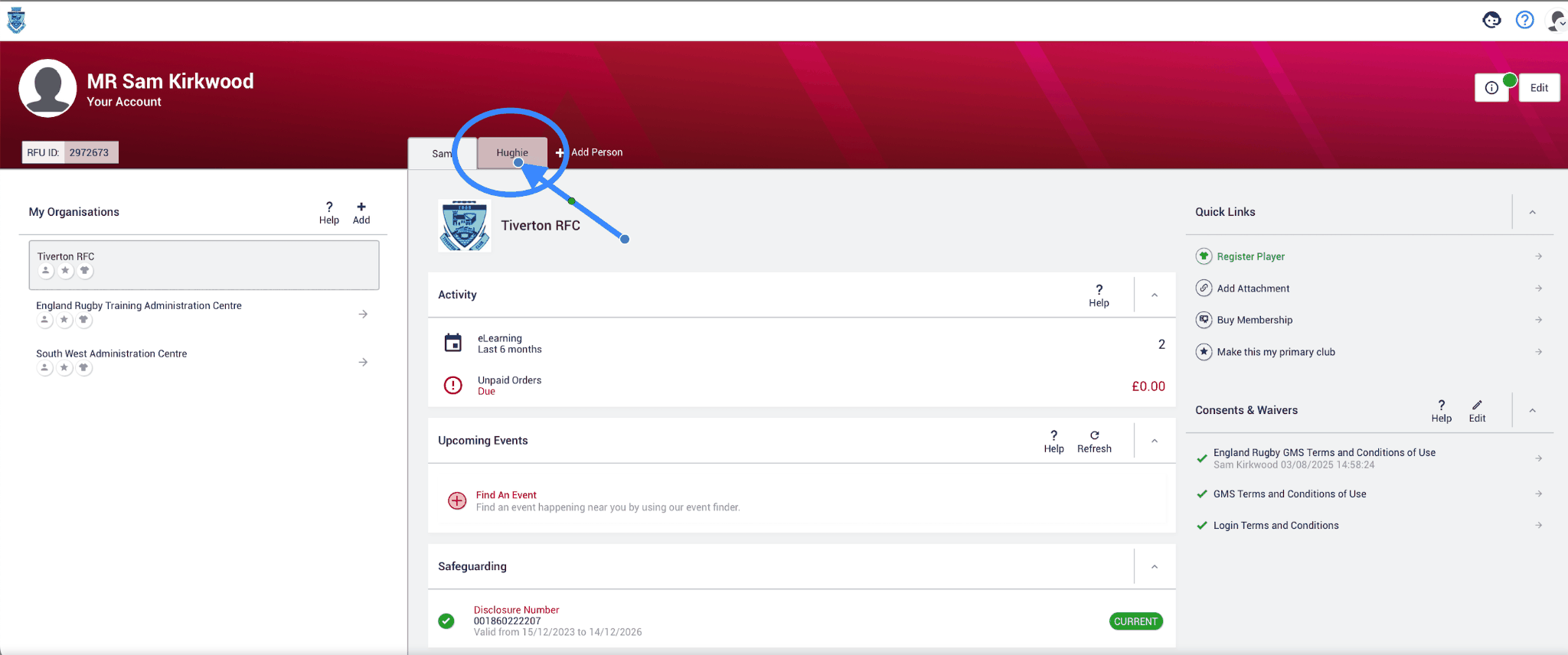
Then, using the rotating green banner, make sure you click on Register to Play (Age Grade).

Then complete this form.
It asks for Format of Rugby, contact or non-contact — non-contact is for Age Groups U8 and U7 only. It also asks for your child's position. If they have a preferred one, add it; this has no bearing on where they play. It is merely an RFU data collection field for their purposes, not Tiverton's or your child's coach's. Personally I put UNSPECIFIED, as Hughie is 9 years old and positions aren't relevant for his age group. Basically, don't stress it.
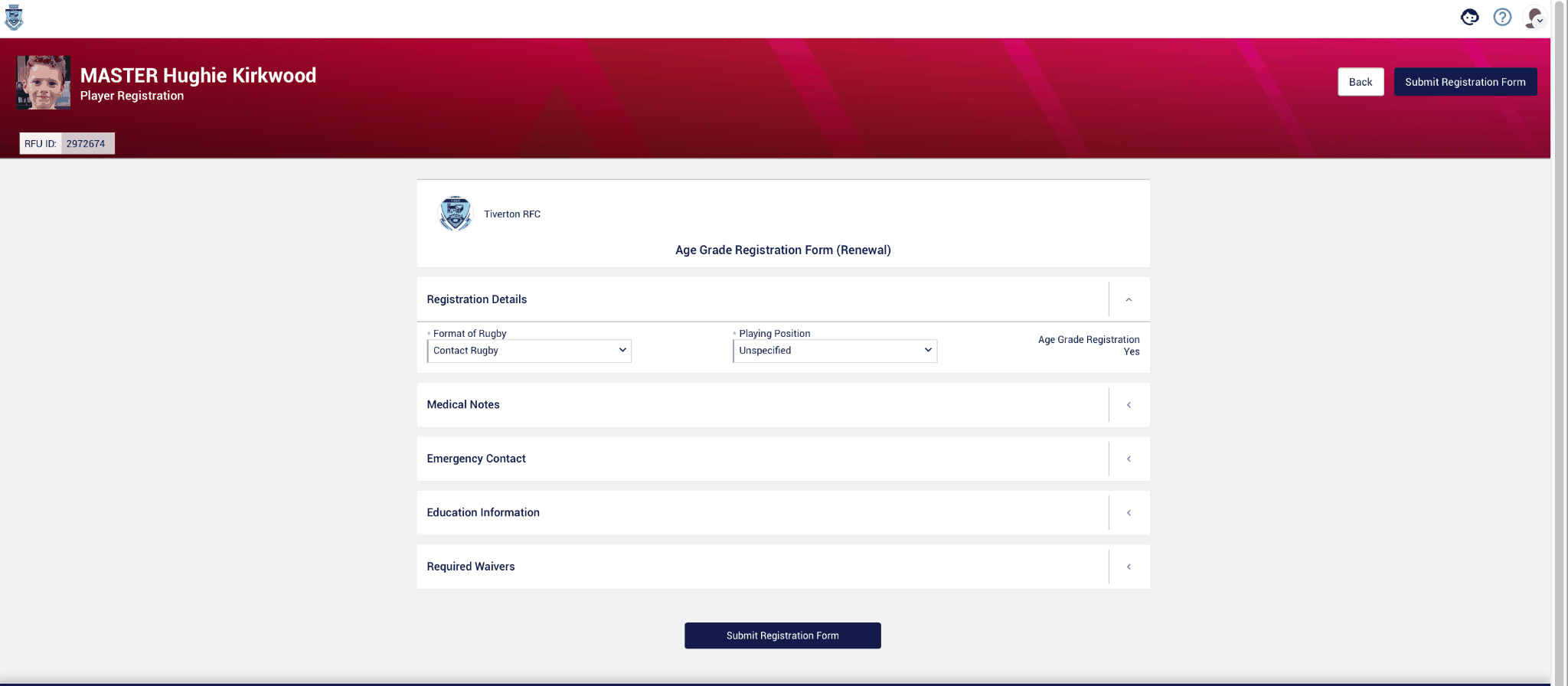
Make sure you complete the waivers — however, we have more to come…
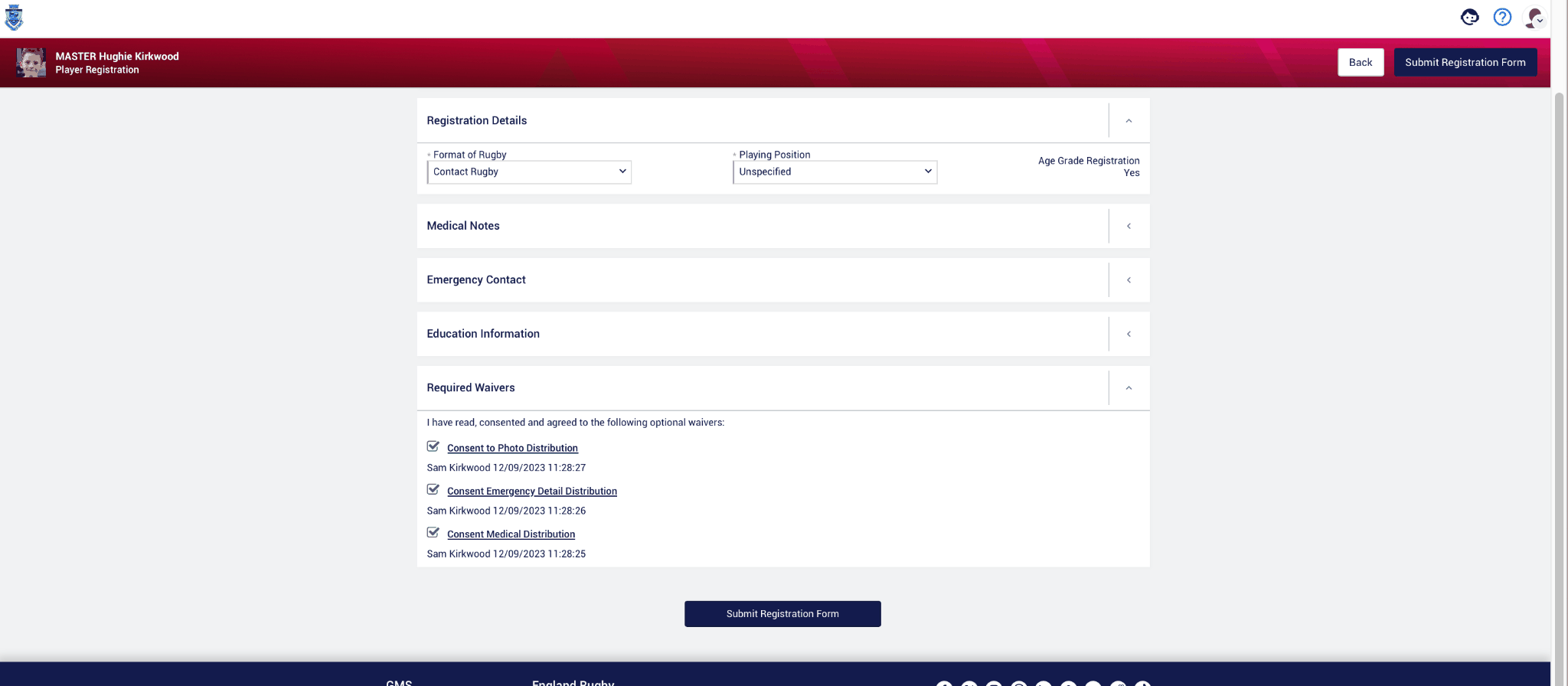
This is the section that tripped up everyone last year — the well hidden Consents and Waivers. It's on the main dashboard, bottom right hand corner. Please do this for BOTH the player's and the Parent or Guardian's account:
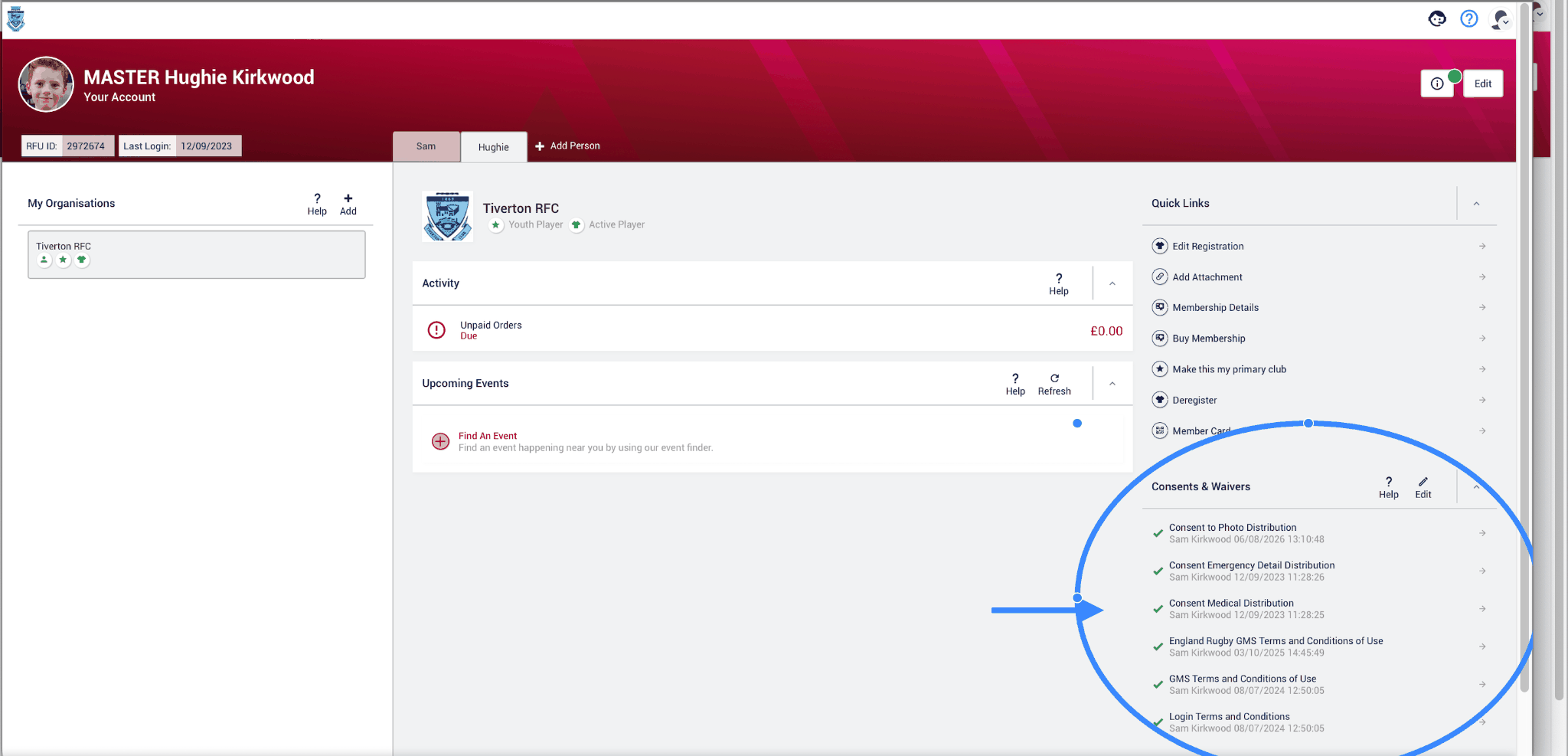
The Consent to Photo Distribution is not mandatory, however all the others are — so please make sure they all have a GREEN tick.
Please ensure the Consents and Waivers are complete, all ticked green, for BOTH the Player and the Parent or Guardian.
You have now completed your child's Membership and Registration for the 26/27 season. If you have any questions, please direct them to your Parent Rep.